

Find what you see.
Please start with the FAQ questions below: most trouble is one of these. Each has the same label on every page, Q1 to Q10. Then the problems we know for this step, each with its cause and fix.
This step needs CO-OP Comms. It cannot be done in CO-OP Comms Client Only.
- Q1
Was it installed through Steam, or run from a copied folder?
How to tell: The top-right corner shows this PC's Steam user name only when Steam started the app. A copy started any other way reads "Steam not running", even with Steam open.
What to do: Please install and start it from the Steam library on both PCs. Only the names change without Steam; the real difference is the firewall. Steam's install adds an allow rule named "CO-OP Comms" for the program in the Steam folder, and a copy run from another folder gets the Windows Security Alert the first time it hosts or listens (Q7).
On CO-OP Comms Client Only: On Client Only the corner shows the Steam name only when Steam started it; otherwise it reads "Steam not running". Its Windows prompt names it "CO-OP Comms Client Only".
- Q9
Is Steam not running?
How to tell: The top-right corner reads "Steam not running".
What to do: Nothing breaks: every copy hosts and joins with Steam open or closed. Steam only supplies the user names. Without Steam on the host PC, the list shows the host PC's Windows computer name instead; without Steam on the joining PC, the host shows "Sending to joining PC's address" instead of the joining PC's Steam user name. Start CO-OP Comms from the Steam library if the Steam user names should show.
Words shaded like this stand for what your own screen shows there, such as your own user name or address.
On CO-OP Comms Client Only: On Client Only the corner reads "Steam not running" in place of your Steam user name, and the host names this PC by its address (Q1).
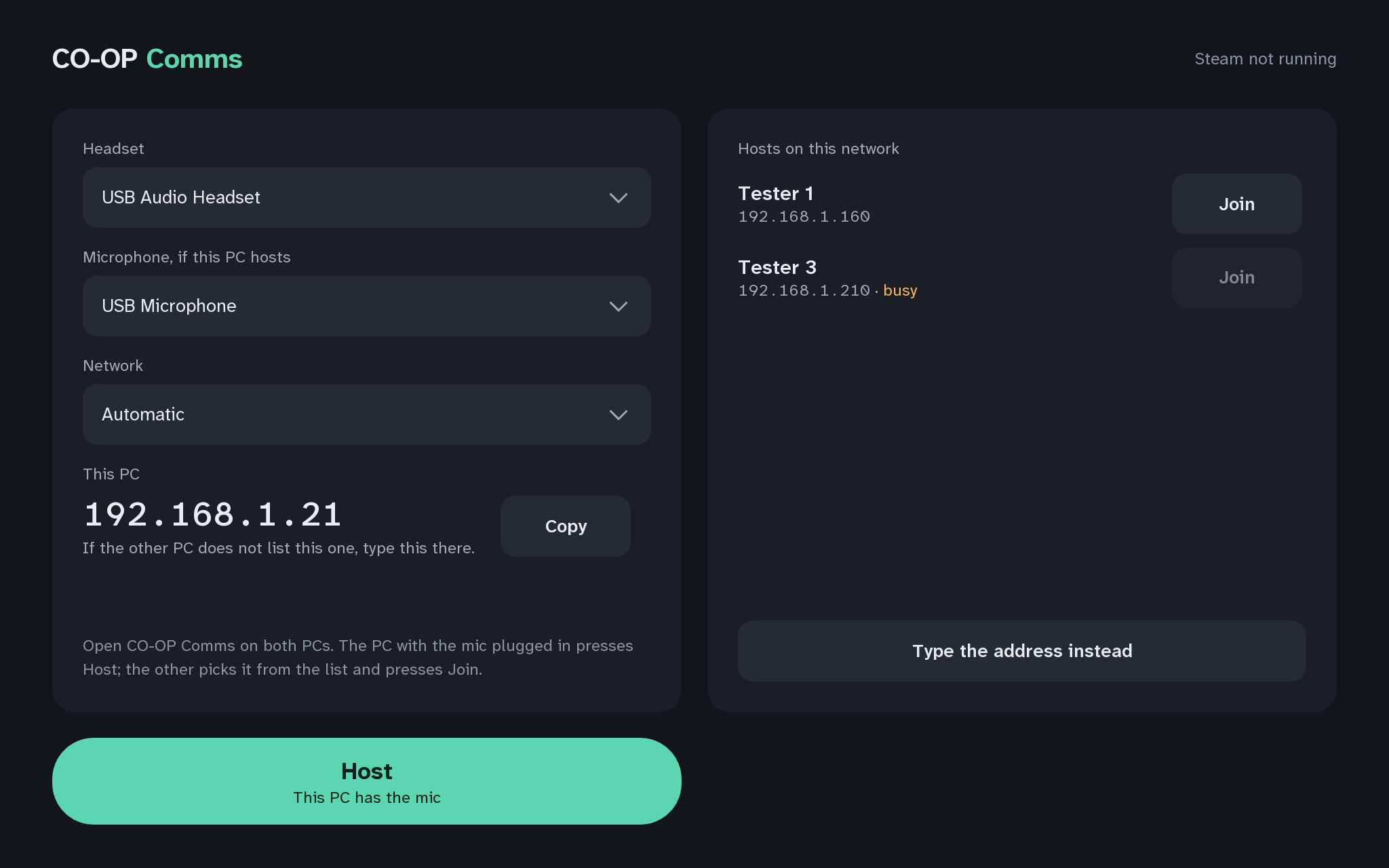
Q9The joining PC started without Steam: the corner reads "Steam not running"CO-OP Comms Show it in CO-OP Comms Show it in CO-OP Comms Client Only - Q2
Which app is on this PC: CO-OP Comms, or the free CO-OP Comms Client Only?
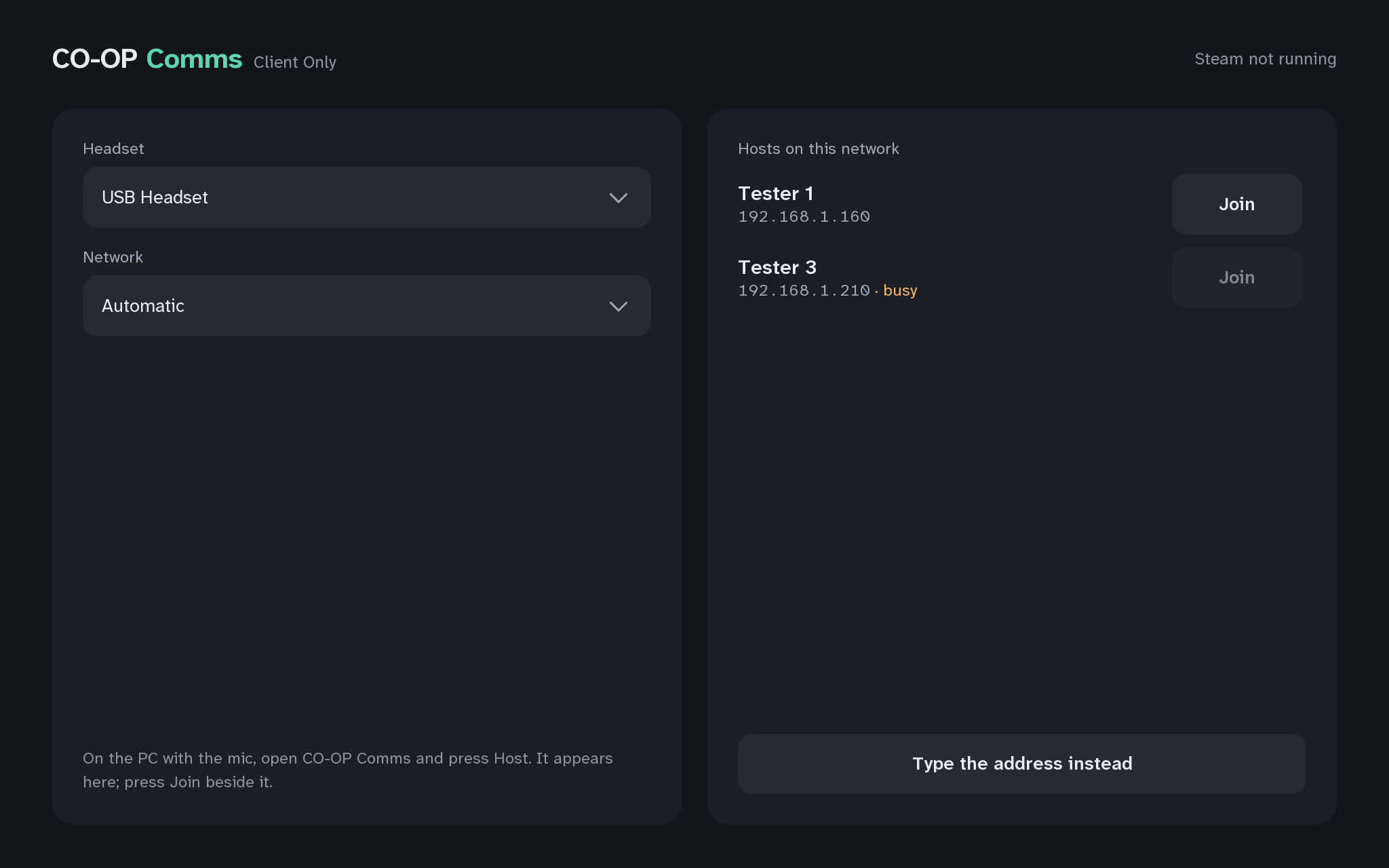
How to tell: CO-OP Comms hosts and joins: its start screen has a Host button ("This PC has the mic") and a picker "Microphone, if this PC hosts". Client Only joins only and has neither.
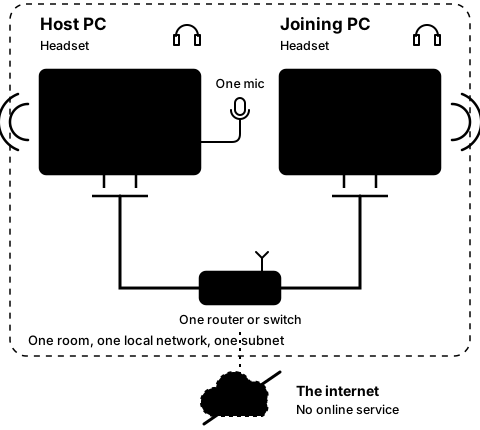
What to do: The PC with the microphone runs CO-OP Comms and presses Host. The other PC runs either app and joins. Two copies of Client Only cannot talk to each other: one PC must host.
On CO-OP Comms Client Only: Client Only's title reads "CO-OP Comms Client Only". It has no Host button and no Microphone picker, and it opens on "Hosts on this network". Please run CO-OP Comms on the PC with the microphone and press Host there; two copies of Client Only never hear each other.
Problems we know for step 1A
-
1A-1
I see
Looking for audio devices…
The window stays on it for more than a few seconds.
- Why
- The sound system is slow to answer, or failed.
- Fix
- Wait a few seconds. If it stays, restart the app. If a red banner names the audio system, check that a sound device is turned on in Windows' Sound settings.
-
1A-2
I see
No network connection
Under This PC, on the start screen.
- Why
- This PC has no network connection.
- Fix
- Please connect a cable or Wi-Fi, then reopen the app.
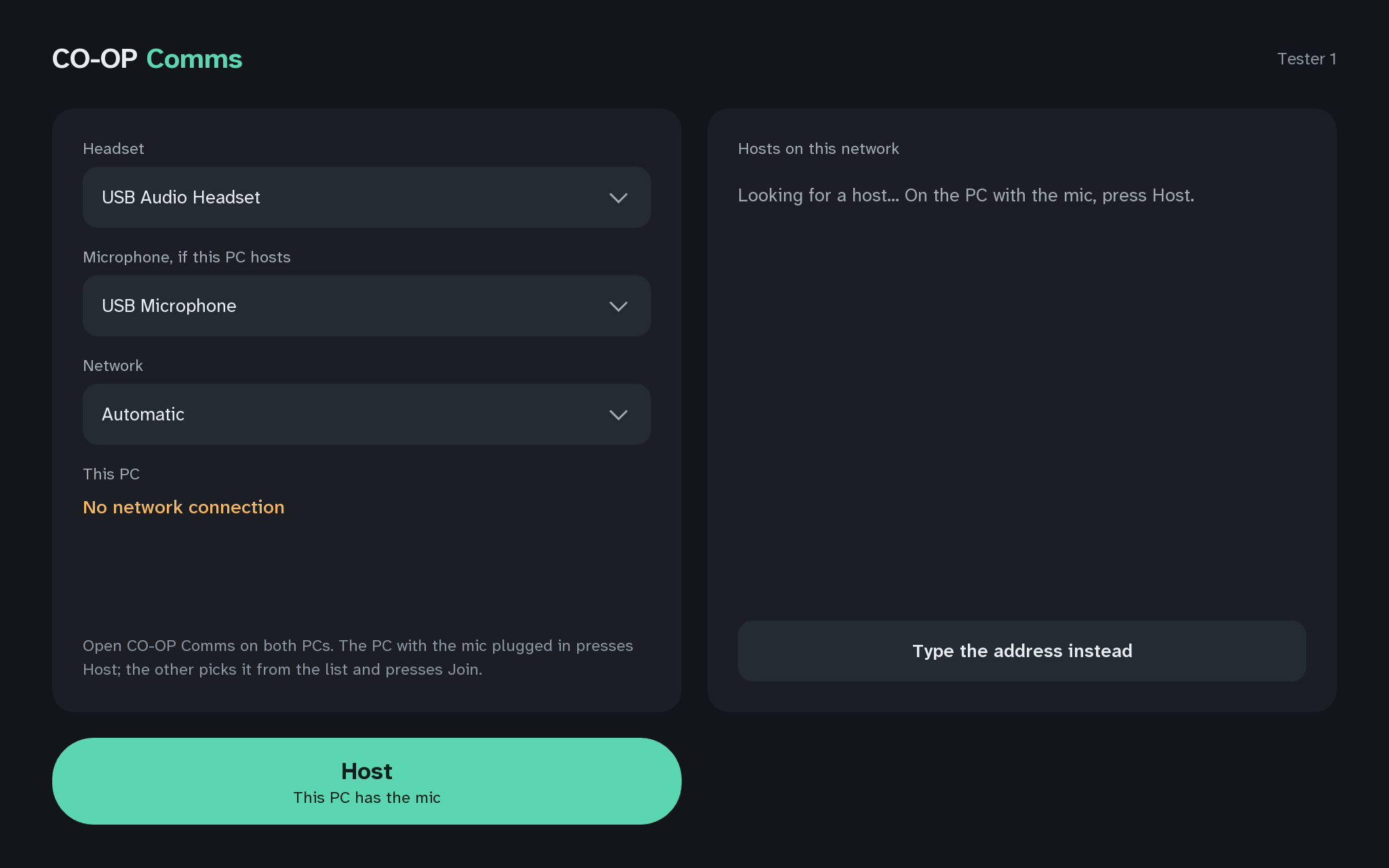
1A-2The host PC: no network connection
Still stuck after all of these?
Please tell us the build and the step: CO-OP Comms 0.2.2, draft build, Step 1A. Add the labels of the FAQ questions you tried, and what the screen says, word for word. That tells us exactly where you were.
Reply on the Steam review message thread for this build, or email benl@irontowerpress.com.