

Find what you see.
Please start with the FAQ questions below: most trouble is one of these. Each has the same label on every page, Q1 to Q10. Then the problems we know for this step, each with its cause and fix.
This step needs CO-OP Comms. It cannot be done in CO-OP Comms Client Only.
- Q3
Is a headset plugged into each PC, and the one microphone into the host PC?
How to tell: With no microphone, the host's Microphone picker reads "No microphone found. Plug one in to host." With no headset or speakers, the Headset picker reads "No headset or speakers found. Plug one in." The host PC needs a headset too: it plays the microphone in its own headset, and without one Host stops with the red banner "Could not open the output device: … (is a headset or speakers plugged in and turned on?)" The lists are read when the app opens and again after every Leave.
What to do: Please plug the device in, then close and reopen the app, or press Leave once. If the host links but an amber line reads "The mic is sending pure silence. In Settings › Privacy & security › Microphone, let desktop apps use the microphone.", turn that setting on. The joining PC needs no microphone. If the voice feels late, please try a wired headset: a wireless one adds its own delay.
On CO-OP Comms Client Only: Client Only needs no microphone, only a headset or speakers. With none, its Headset picker reads "No headset or speakers found. Plug one in."
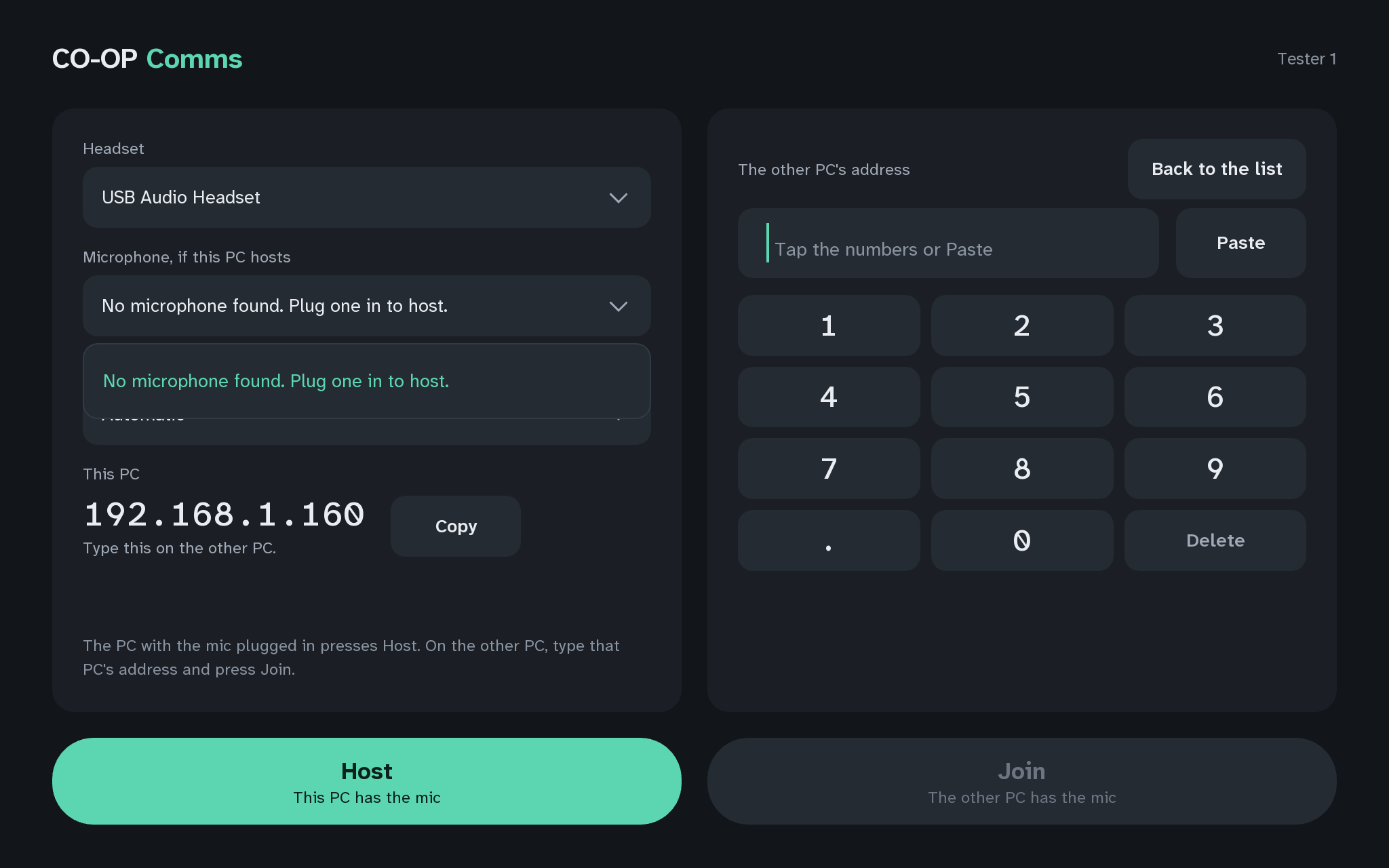
Q3The host PC: no microphone found 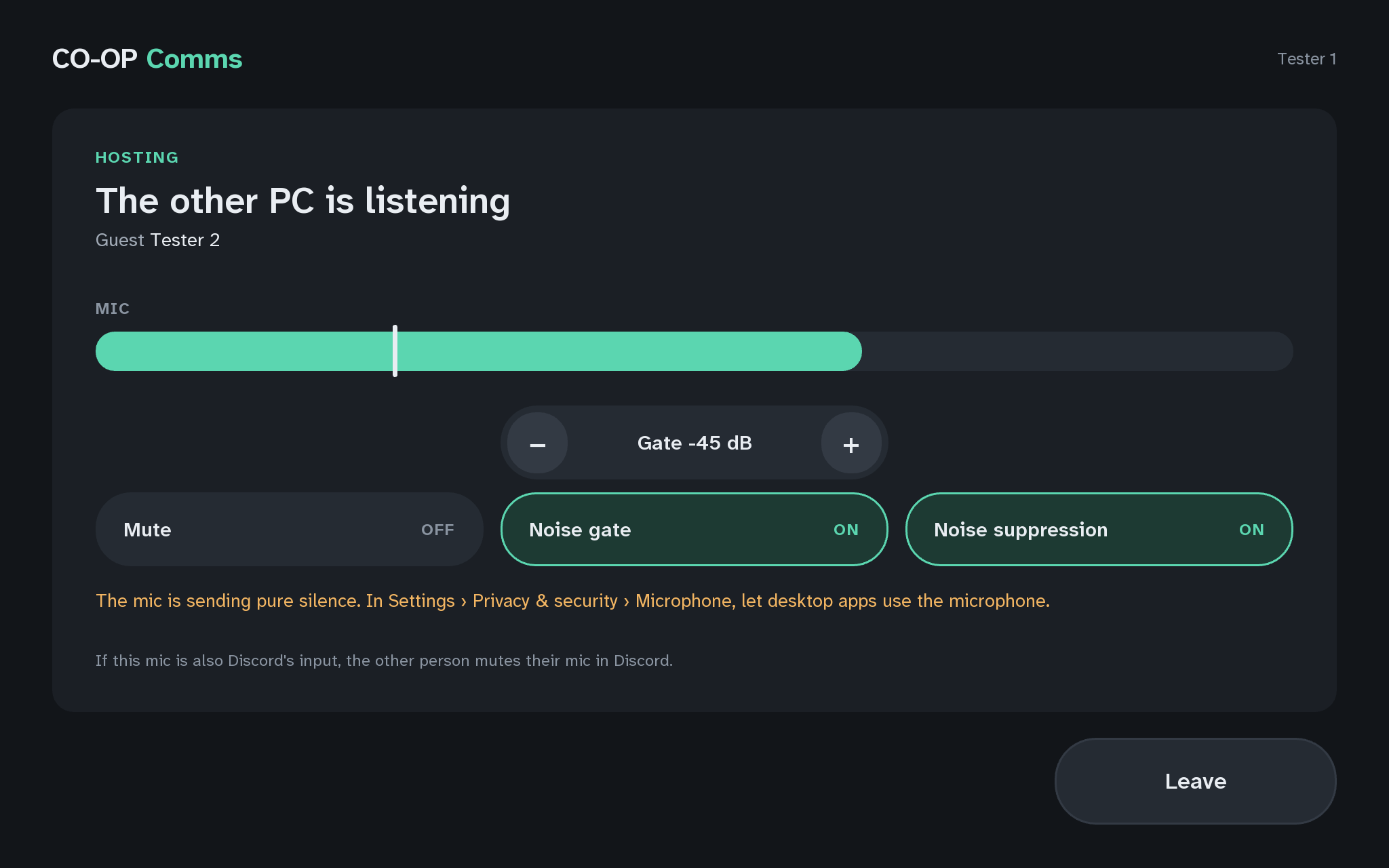
Q3The host PC: the mic is sending pure silence 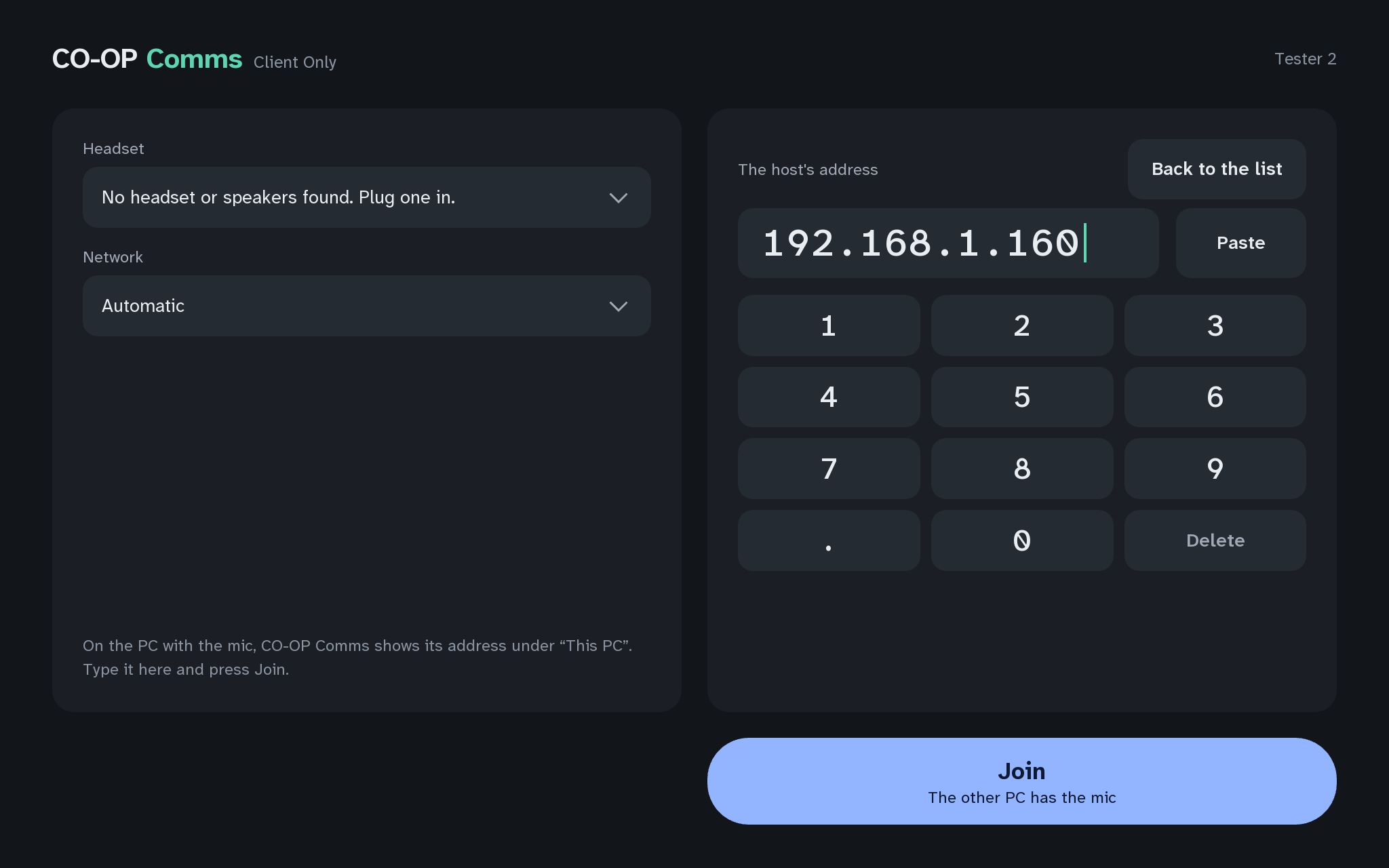
Q3No headset or speakers foundCO-OP Comms Client Only 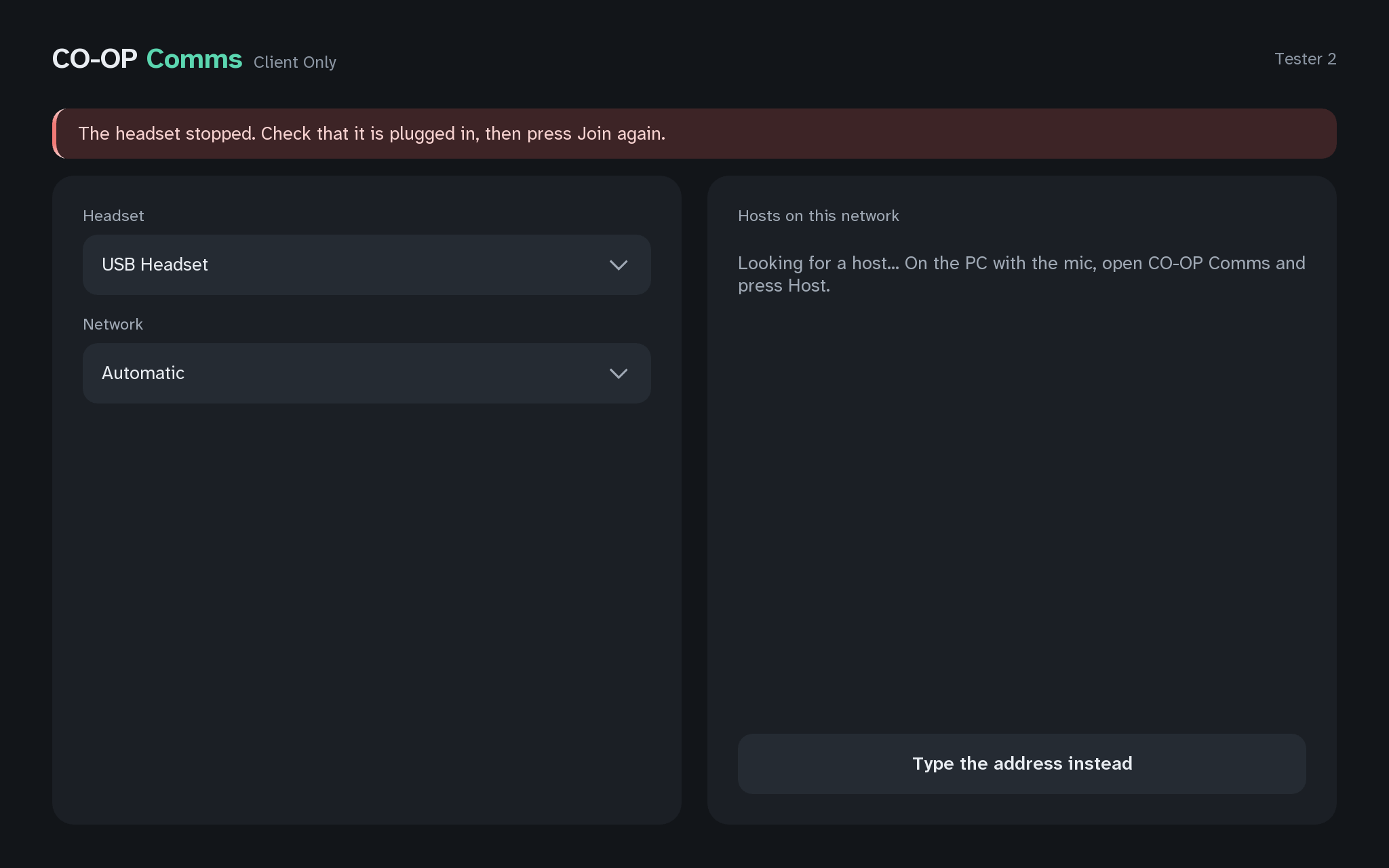
Q3The headset stoppedCO-OP Comms Client Only - Q4
Is either PC a virtual machine?
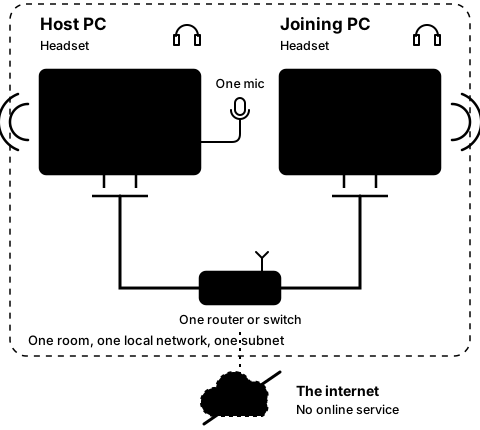
How to tell: The app cannot tell that it runs in a VM. A VM on NAT, the default in most VM software, sits behind its own host PC's address on a subnet of its own: the host list cannot see across it, and nothing outside can reach it to join. A VM's sound comes from its virtual sound card.
What to do: Please use two real PCs on one router or switch. If a VM must be used, set its network to bridged, so it gets an address on the same subnet as the other PC (Q6), and check that its Headset and Microphone pickers list real devices. We have not tested CO-OP Comms in a VM.
- Q5
Is either PC reached by remote desktop, a cloud PC or a VPN?
How to tell: The network is where the PC is, not where you are. Over remote desktop the app runs on the far PC, on its network, and its sound goes through the remote-desktop program's "Remote Audio" devices. The list of hosts does not reach a PC over a VPN, and many cloud networks do not pass it either.
What to do: Please sit at both PCs, on the same subnet of one home or office network: no online service, made for the local network only. We have not tested it over remote desktop, a cloud PC or a VPN.
Problems we know for step 1B
-
1B-1
I see
No microphone found. Plug one in to host.
In the Microphone picker.
- Why
- No microphone is plugged in, or it was plugged in after the app opened (Q3).
- Fix
- Please plug it in, then close and reopen the app, or press Leave once.
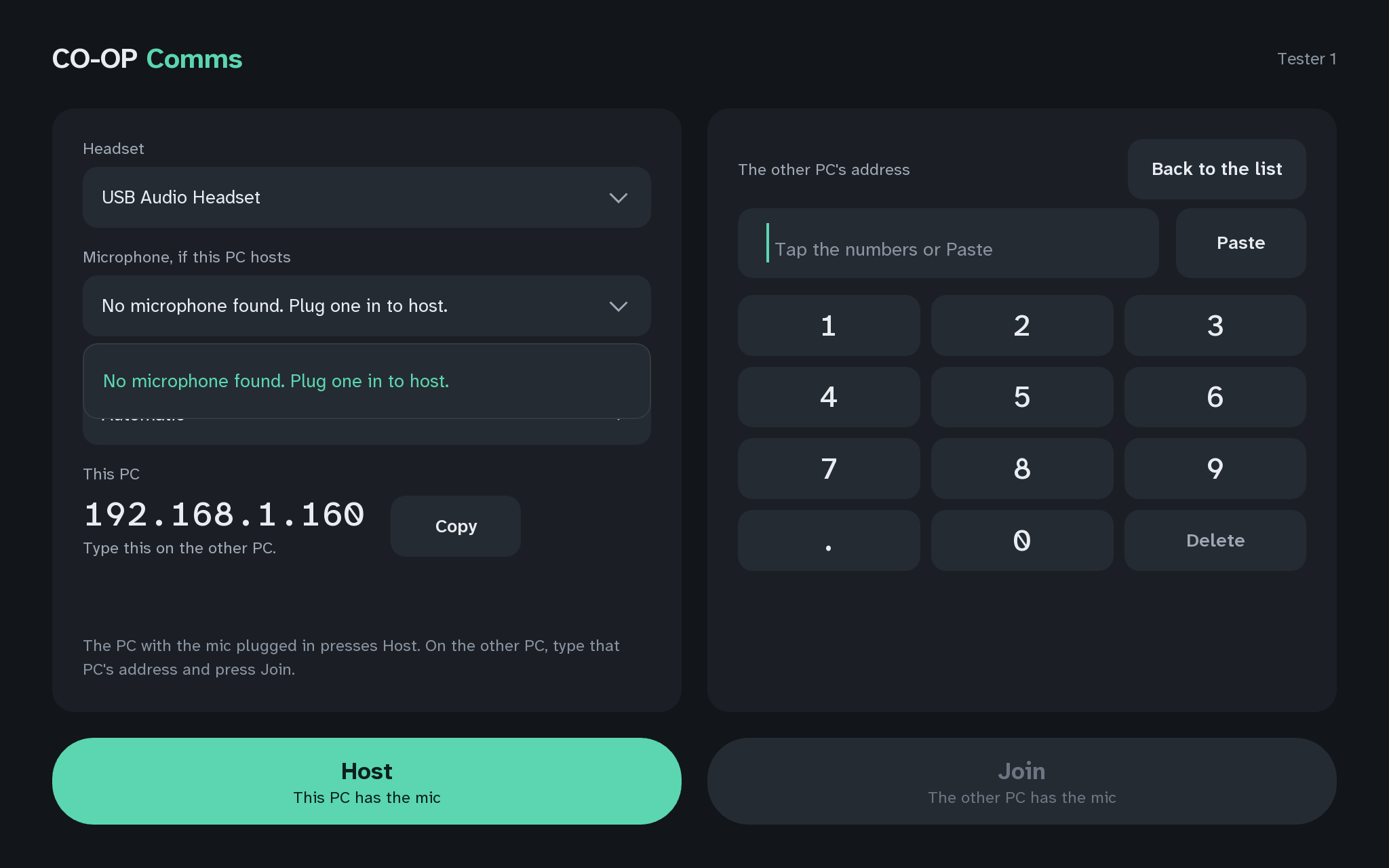
1B-1The host PC: no microphone found -
1B-2
The wrong device is picked.
- Why
- The pickers list what Windows offers. The first entry, "System default (name)", is the device Windows uses by default, which may not be the one you mean.
- Fix
- Pick the device by its name.
Words shaded like this stand for what your own screen shows there, such as your own user name or address.
Still stuck after all of these?
Please tell us the build and the step: CO-OP Comms 0.2.2, draft build, Step 1B. Add the labels of the FAQ questions you tried, and what the screen says, word for word. That tells us exactly where you were.
Reply on the Steam review message thread for this build, or email benl@irontowerpress.com.