

Find what you see.
Please start with the FAQ questions below: most trouble is one of these. Each has the same label on every page, Q1 to Q10. Then the problems we know for this step, each with its cause and fix.
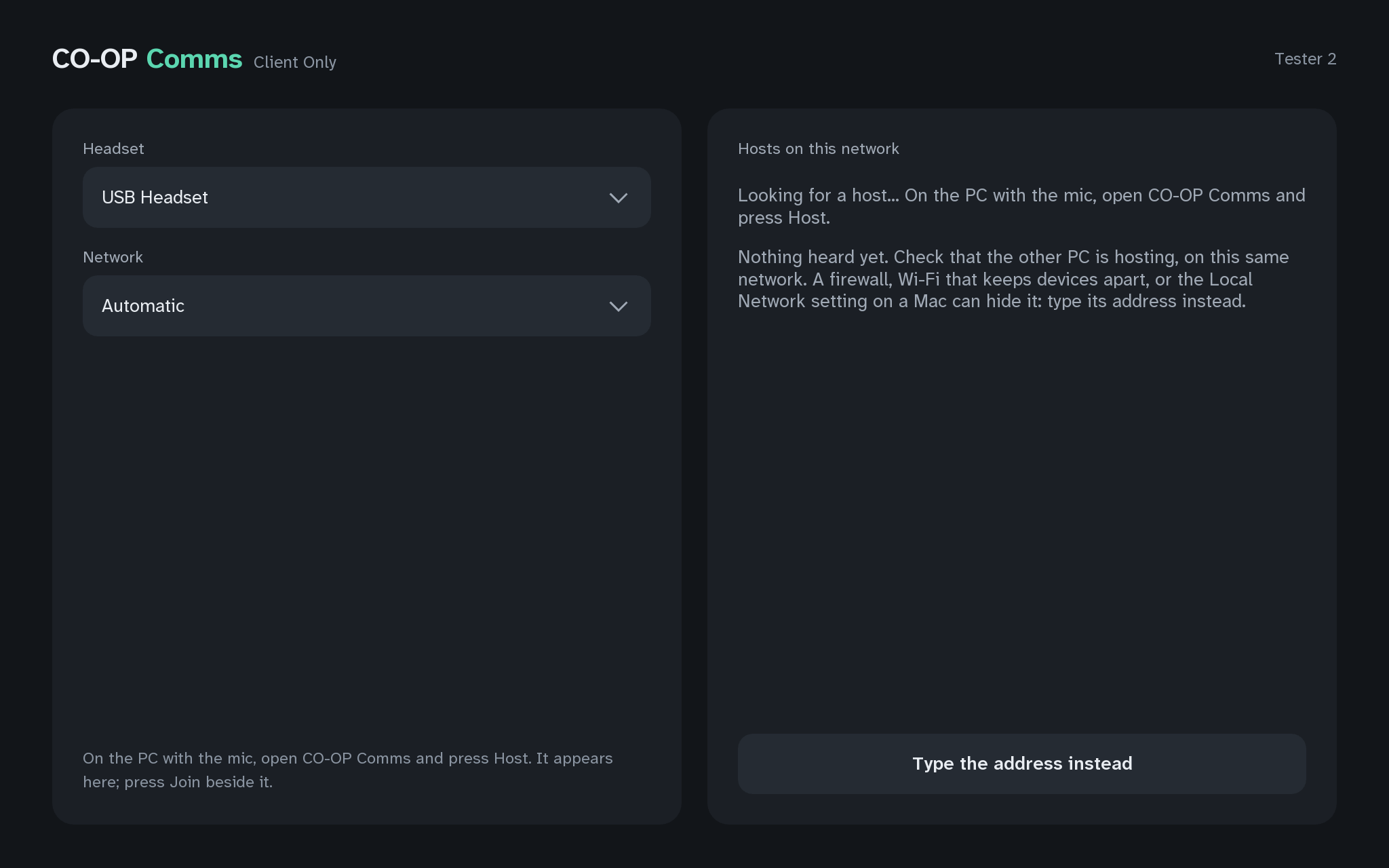
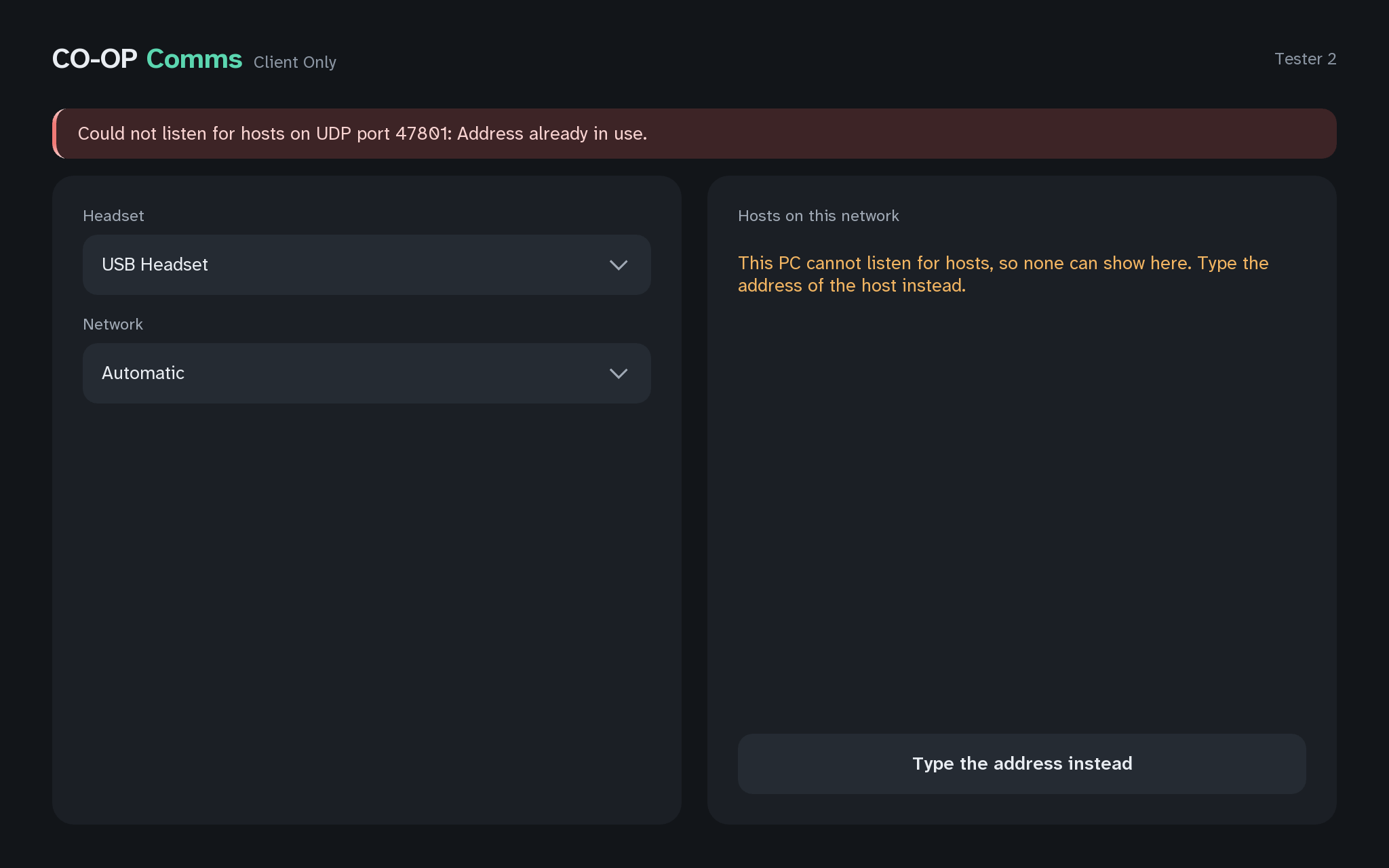
On CO-OP Comms Client Only: Client Only opens straight onto the host list, after "Looking for audio devices…" for a moment.
- Q6
Are both PCs on the same subnet, and able to reach each other?
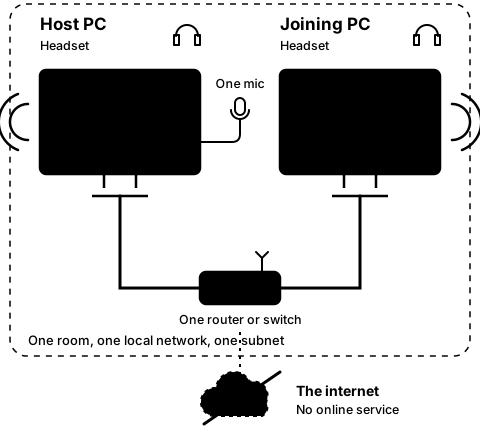
How to tell: CO-OP Comms is made for two PCs on the same subnet of one local network. The list of hosts stays on the local network: it reaches every PC on the same subnet (PCs plugged into the same router or switch), it never goes out to the WAN (the internet), and it does not pass between two separate subnets in one building. Compare the two addresses: each PC shows its own under This PC on its start screen. On most home and office networks, PCs on one subnet have addresses whose first three numbers match, such as 192.168.1.160 and 192.168.1.21; 192.168.1.160 and 192.168.5.40 are on different subnets. Matching numbers are not proof. Guest Wi-Fi, Wi-Fi that keeps devices apart ("AP isolation" or "client isolation"), separate VLANs, a DMZ, or a test lab that isolates each machine look the same in the numbers and still keep the PCs apart. The signs are in the windows: the host is hosting, but the joining PC's list stays empty after 10 seconds, and a typed address gets "No answer from …" after 8 seconds. On Wi-Fi, once linked, a grey line reads "This PC is on Wi-Fi. CO-OP Comms is made for wired Ethernet; over Wi-Fi, expect more delay and gaps in the sound."
What to do: Please plug both PCs into the same router or switch with a cable, on the main network, not a guest network. On a managed or test network, please ask your IT staff: "These two PCs need to reach each other directly on one local network: the same subnet, with no client isolation or firewall between them, and UDP ports 47800 and 47801 allowed both ways. Can you please put them there?" The rule: the list finds hosts on the same subnet only; typing the host PC's address is tried for any address, private or public, on another subnet too. It links when the network between the PCs lets UDP port 47800 through both ways; machines kept apart still will not connect. We test one subnet, and have not yet tried a typed join across a router.
On CO-OP Comms Client Only: Client Only has no "This PC" line. Its own address shows in the Network picker, such as "Ethernet · 192.168.1.21". Read the host's address from the host's "This PC" line.
- Q7
Was the Windows firewall prompt answered Deny, or closed without an answer?
How to tell: Either one adds Block rules for the program, and a Block rule wins over every Allow rule, Steam's included. The host then hears no joins: the joining PC shows "No answer from …" after 8 seconds, and the host stays on "No guest yet".
What to do: Please open Windows Security › Firewall & network protection › Advanced settings › Inbound Rules. Delete the Block rules naming roomMicApp.exe. Start CO-OP Comms, press Host, and answer the prompt Allow with Private networks ticked. If the network is set to Public, set it to Private in Settings › Network & internet › Ethernet (or Wi-Fi) › Network profile type, or allow the app on Public too.
On CO-OP Comms Client Only: On the Client Only PC, please delete the Block rules that name roomMicClient.exe. Client Only receives the sound on UDP 47800 and the host list on UDP 47801, so a Block rule there stops both.
- Q2
Which app is on this PC: CO-OP Comms, or the free CO-OP Comms Client Only?
How to tell: CO-OP Comms hosts and joins: its start screen has a Host button ("This PC has the mic") and a picker "Microphone, if this PC hosts". Client Only joins only and has neither.
What to do: The PC with the microphone runs CO-OP Comms and presses Host. The other PC runs either app and joins. Two copies of Client Only cannot talk to each other: one PC must host.
On CO-OP Comms Client Only: Client Only's title reads "CO-OP Comms Client Only". It has no Host button and no Microphone picker, and it opens on "Hosts on this network". Please run CO-OP Comms on the PC with the microphone and press Host there; two copies of Client Only never hear each other.
- Q4
Is either PC a virtual machine?
How to tell: The app cannot tell that it runs in a VM. A VM on NAT, the default in most VM software, sits behind its own host PC's address on a subnet of its own: the host list cannot see across it, and nothing outside can reach it to join. A VM's sound comes from its virtual sound card.
What to do: Please use two real PCs on one router or switch. If a VM must be used, set its network to bridged, so it gets an address on the same subnet as the other PC (Q6), and check that its Headset and Microphone pickers list real devices. We have not tested CO-OP Comms in a VM.
- Q5
Is either PC reached by remote desktop, a cloud PC or a VPN?
How to tell: The network is where the PC is, not where you are. Over remote desktop the app runs on the far PC, on its network, and its sound goes through the remote-desktop program's "Remote Audio" devices. The list of hosts does not reach a PC over a VPN, and many cloud networks do not pass it either.
What to do: Please sit at both PCs, on the same subnet of one home or office network: no online service, made for the local network only. We have not tested it over remote desktop, a cloud PC or a VPN.
- Q10
Are both PCs on version 0.2.2?
How to tell: Only 0.2.2 shows JOINING while it waits for the host, and the timed warnings these steps quote. 0.2.1 shows JOINED at once.
What to do: Let Steam update both PCs. Mixed versions still link, since the packet format did not change.
On CO-OP Comms Client Only: Client Only 0.2.1 also shows JOINED at once, with none of the timed warnings.
Problems we know for step 2A
-
2A-1
I see
Nothing heard yet. Check that the other PC is hosting, on this same network. A firewall, Wi-Fi that keeps devices apart, or the Local Network setting on a Mac can hide it: type its address instead.
In the list, after 10 seconds with no host heard.
- Why
- The list only reaches PCs on the same subnet: it never goes out to the WAN (the internet), it does not pass between two separate subnets, and a network that keeps machines apart (a DMZ, separate VLANs, Wi-Fi isolation) stops it too (Q6). Or a firewall on either PC (Q7), or a VM, a VPN or a cloud PC (Q4, Q5).
- Fix
- Compare the two PCs' addresses first (Q6). Then join by typing the host PC's address (step 2D), which works on any subnet this PC can reach. If that fails too, the PCs cannot reach each other: please ask your IT staff to put both on one subnet where they can (Q6).
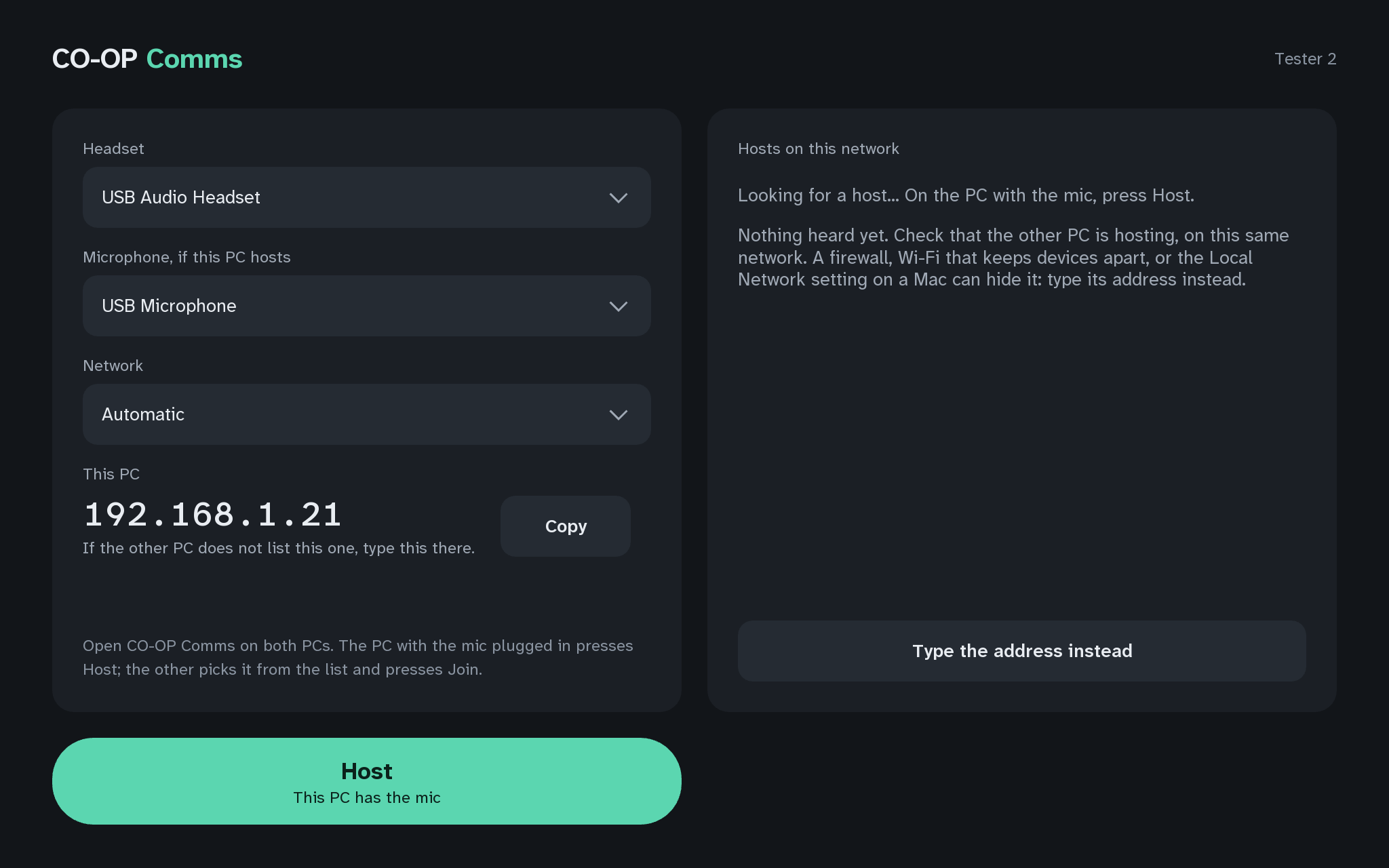
2A-1The joining PC: nothing heard yetCO-OP Comms Show it in CO-OP Comms Show it in CO-OP Comms Client Only -
2A-2
I see
This PC cannot listen for hosts, so none can show here. Type the address of the host instead.
In the list.
- Why
- UDP port 47801 is held by another copy on this PC (Q8).
- Fix
- Close the other copy, or join by typing the address (step 2D).
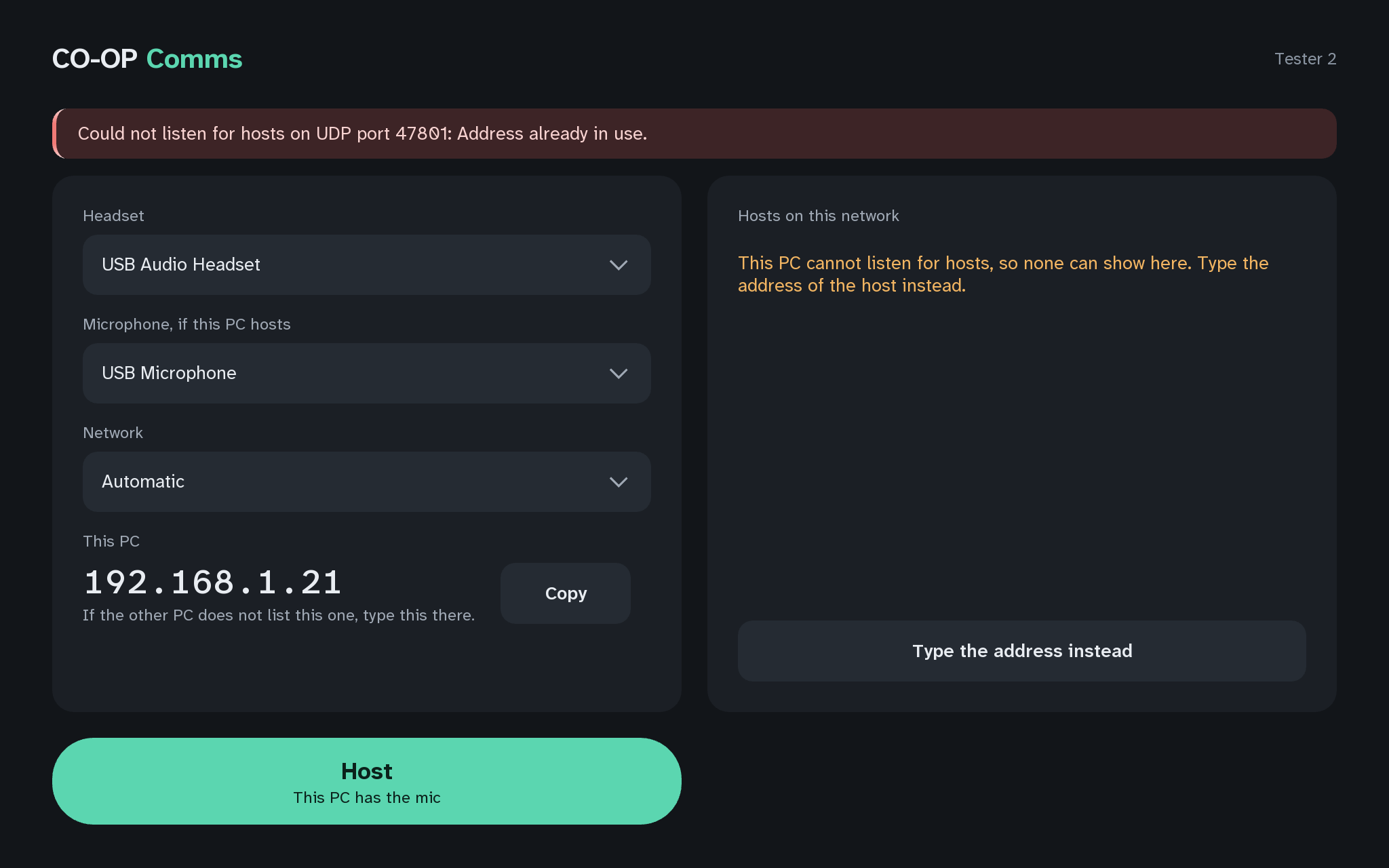
2A-2The joining PC: cannot listen for hostsCO-OP Comms Show it in CO-OP Comms Show it in CO-OP Comms Client Only -
2A-3
I see
· busy
Beside the host's address in the list.
- Why
- The host already has a guest; it takes one at a time.
- Fix
- Press Leave on the other joining PC first.
Still stuck after all of these?
Please tell us the build and the step: CO-OP Comms 0.2.2, draft build, Step 2A. Add the labels of the FAQ questions you tried, and what the screen says, word for word. That tells us exactly where you were.
Reply on the Steam review message thread for this build, or email benl@irontowerpress.com.