
Find what you see.
Please start with the FAQ questions below: most trouble is one of these. Each has the same label on every page, Q1 to Q10. Then the problems we know for this step, each with its cause and fix.
- Q3
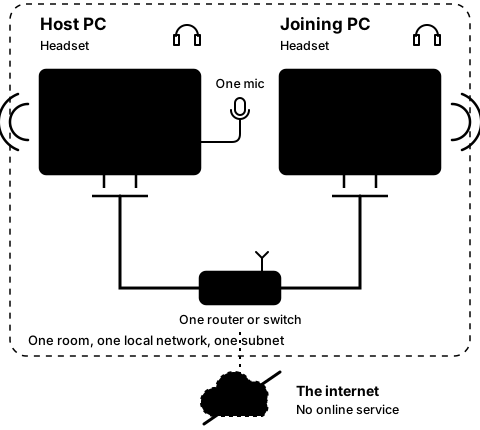
Is a headset plugged into each PC, and the one microphone into the host PC?
How to tell: With no microphone, the host's Microphone picker reads "No microphone found. Plug one in to host." With no headset or speakers, the Headset picker reads "No headset or speakers found. Plug one in." The host PC needs a headset too: it plays the microphone in its own headset, and without one Host stops with the red banner "Could not open the output device: … (is a headset or speakers plugged in and turned on?)" The lists are read when the app opens and again after every Leave.
What to do: Please plug the device in, then close and reopen the app, or press Leave once. If the host links but an amber line reads "The mic is sending pure silence. In Settings › Privacy & security › Microphone, let desktop apps use the microphone.", turn that setting on. The joining PC needs no microphone. If the voice feels late, please try a wired headset: a wireless one adds its own delay.
On CO-OP Comms Client Only: Client Only needs no microphone, only a headset or speakers. With none, its Headset picker reads "No headset or speakers found. Plug one in."
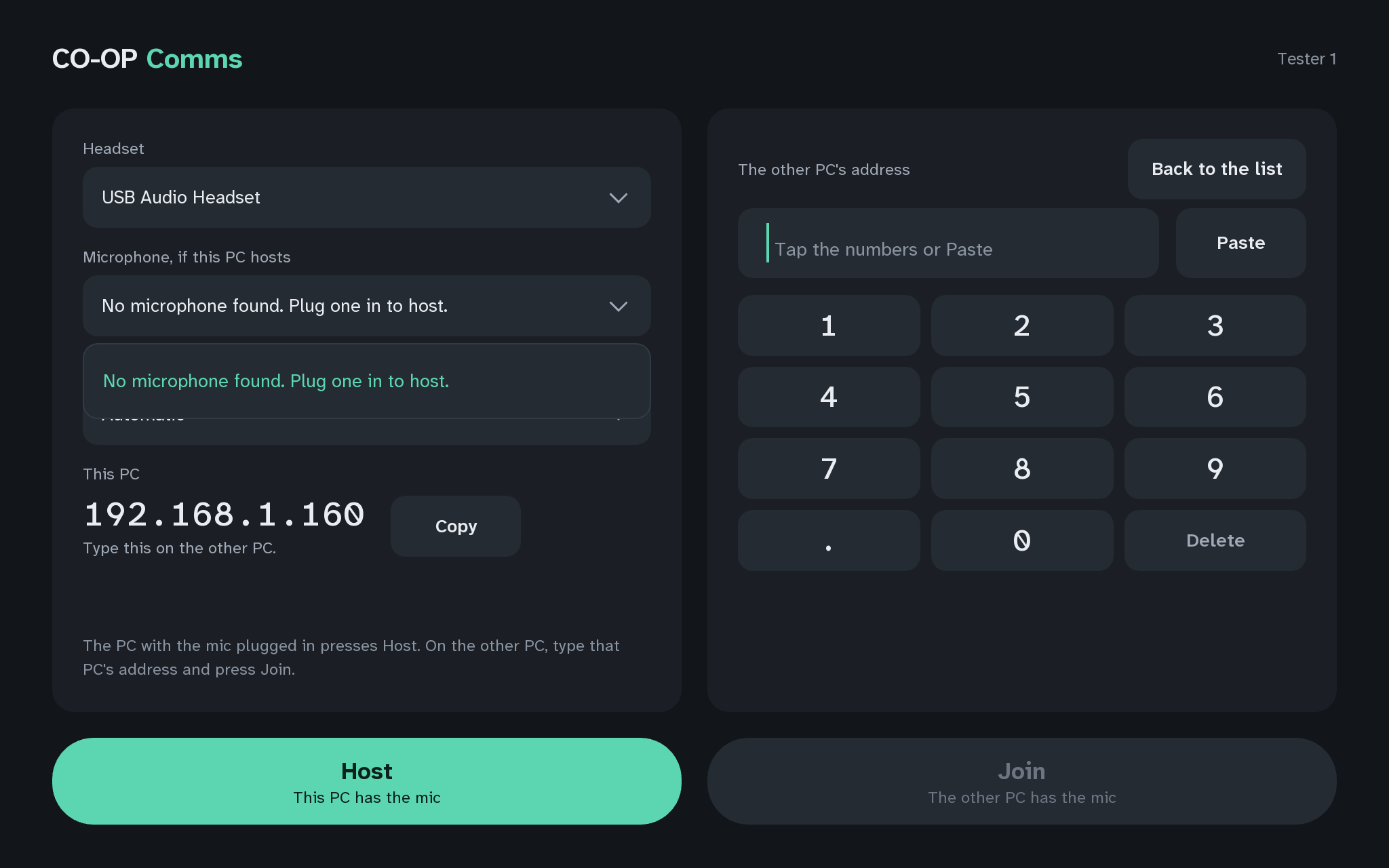
Q3The host PC: no microphone found 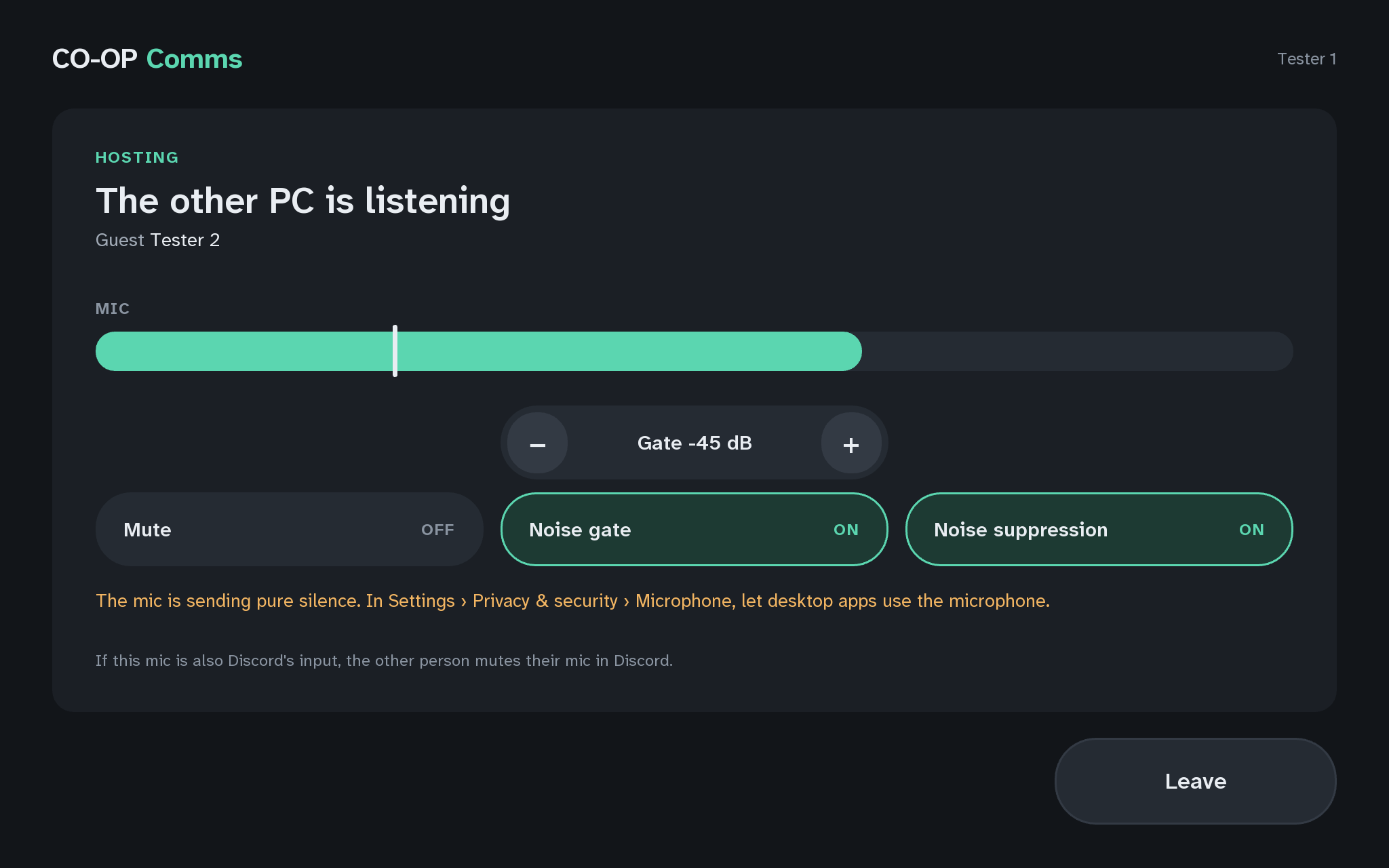
Q3The host PC: the mic is sending pure silence 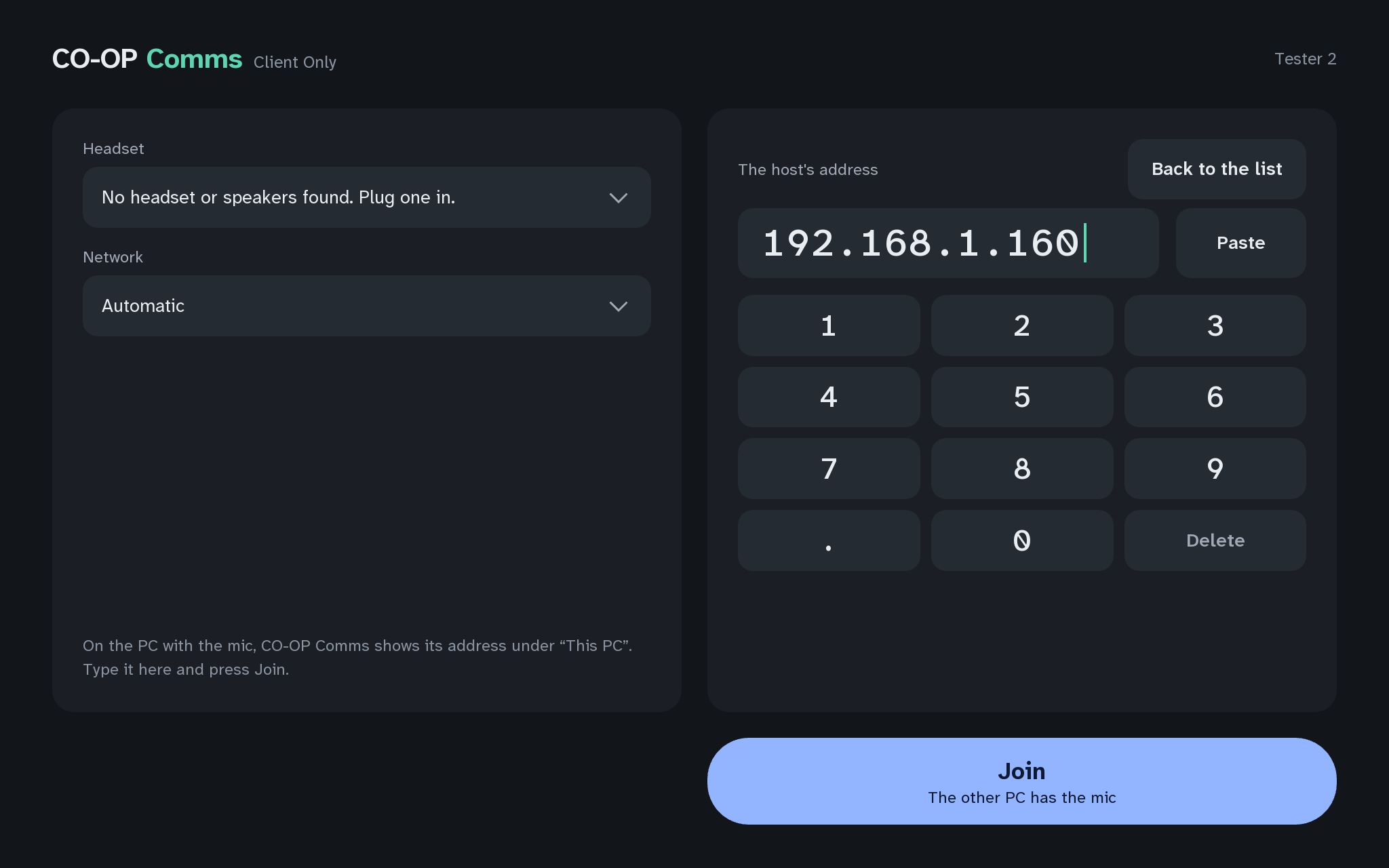
Q3No headset or speakers foundCO-OP Comms Client Only 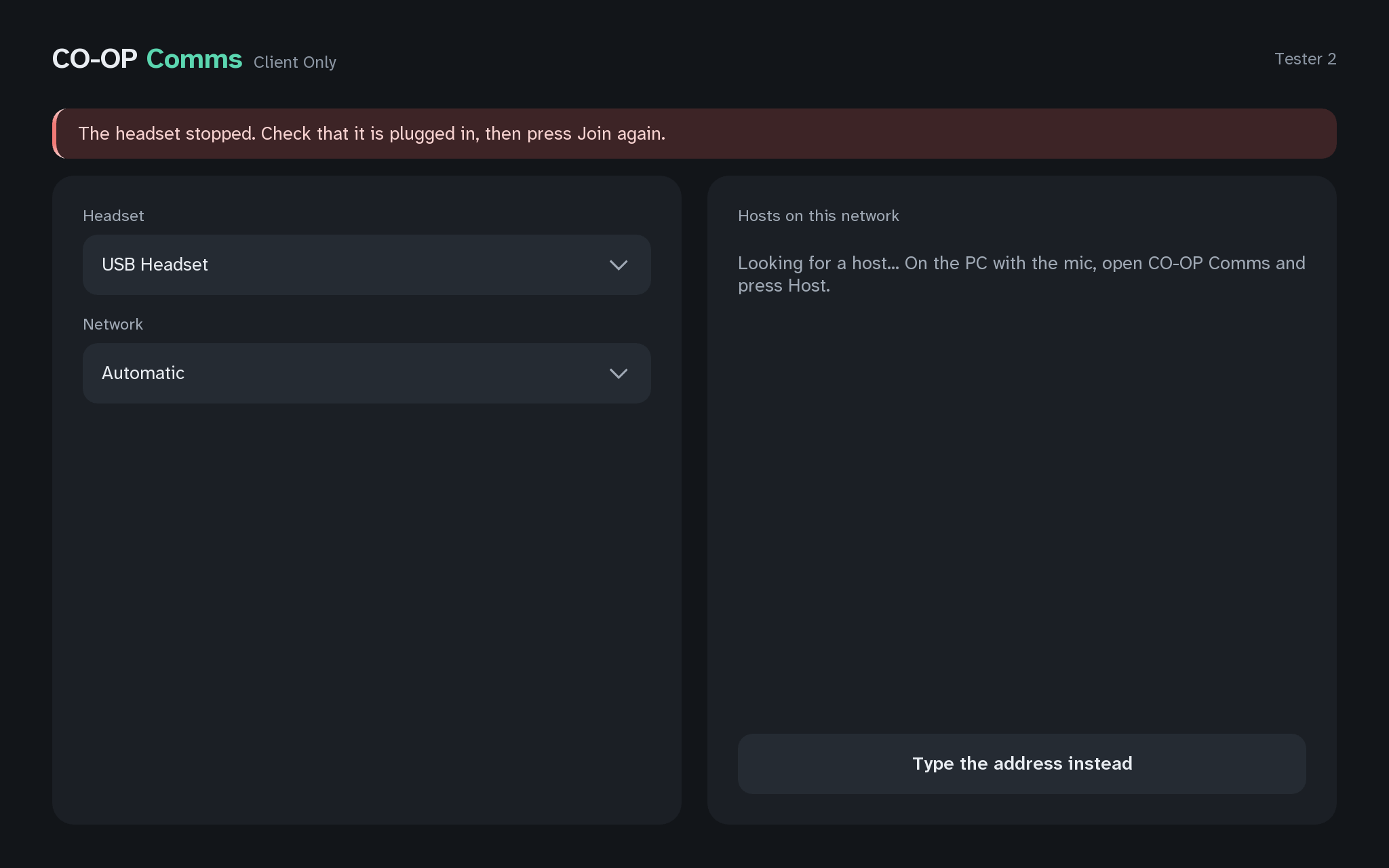
Q3The headset stoppedCO-OP Comms Client Only
Problems we know for step 4B
-
4B-1
The host PC's window shows nothing when the joining PC mutes.
- Why
- The joining PC's Mute only silences its own headset, so there is nothing to tell the host.
- Fix
- Nothing is wrong. Press Mute again on the joining PC so it reads OFF.
Still stuck after all of these?
Please tell us the build and the step: CO-OP Comms 0.2.2, draft build, Step 4B. Add the labels of the FAQ questions you tried, and what the screen says, word for word. That tells us exactly where you were.
Reply on the Steam review message thread for this build, or email benl@irontowerpress.com.